You list your tickets, StubHub matches you with a buyer, you deliver the tickets by the deadline, and then you get paid after the event.
If you take only one thing from this guide: be 100% accurate with your ticket details and delivery method, and deliver on time—StubHub can charge penalties if a sale falls through.
Before you list: what you need ready
Have this in front of you so you don’t guess:
-
Correct event (city + date matter)
-
Quantity
-
Section / row / seat numbers (or “General Admission” if that’s what you have)
-
Ticket type / delivery method (mobile transfer vs PDF vs physical)
-
A valid payment method for payout (StubHub commonly supports bank transfer/direct deposit or PayPal depending on region)
-
A valid credit card on file (StubHub may require this to list)
Step 1: Create (or log into) your StubHub account
If you don’t already have an account, create a Stubhub account and confirm your email. StubHub supports standard sign-in options
Step 2: Set up how you’ll get paid
Go into your account settings and add your payout method (for many sellers, that’s direct deposit/bank transfer or PayPal). Make sure the payout method matches the currency you’re selling in.
Step 3: Create your listing
On StubHub, selling starts the same way whether you’re on mobile or desktop:
- Hit Sell and search the event. (Start here)
- Select the correct date and city.
- Enter your listing details (delivery + ticket info) and set your price.
What you’ll enter while listing
StubHub generally prompts you through:
-
Delivery: whether you can deliver immediately or later (based on when you’ll have tickets in-hand)
-
Information: quantity + seat location + any required notes/restrictions
-
Price: your per-ticket price
Important: StubHub may allow you to list tickets even if you don’t have them yet, but they explicitly caution to only list tickets you’re confident you will have and can deliver.
Step 4: Price your tickets (without overthinking it)
A practical approach:
-
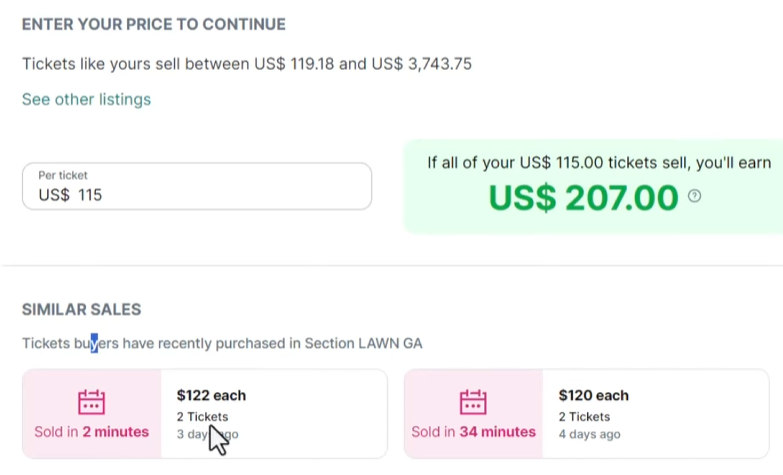
Start with the “comps”: look at similar section/row listings and price near the middle if you want a normal time-to-sale.
-
If you want speed, price slightly below comparable listings.
-
If you want max payout, price higher—but accept that you may sit longer (or not sell).
Also note: seller fees are dynamic—StubHub says it’s free to list, but when your tickets sell they collect a sell fee, and the fee can vary based on factors like ticket supply/demand, price, and time to event.
Step 5: After your tickets sell, watch your email (and deadlines)
When your tickets sell, StubHub sends a confirmation with delivery instructions and a delivery deadline. Missing the deadline is where sellers get into trouble, so we reccommend transferring your tickets to the buyer as soon as possible.
Step 6: Deliver the tickets (by ticket type)
This is the part that matters most.
A) Mobile transfer tickets (Ticketmaster/AXS/team sites)
If your tickets live inside Ticketmaster, AXS, or a team/venue account, StubHub typically requires you to transfer them through the original provider (not by screenshot).
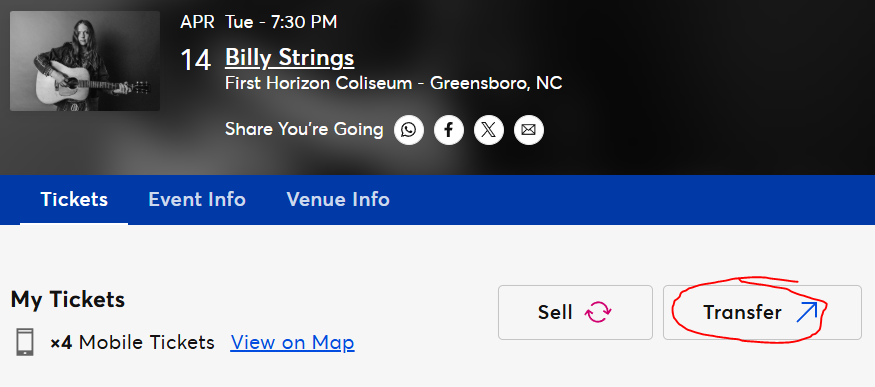
Typical flow:
- Go to Sales in StubHub and view the sale details (you’ll need the buyer email).
- Copy the buyer email and transfer the tickets inside the original platform (Ticketmaster/AXS/team app).
- Save proof of transfer (StubHub may ask for it).
- Back in StubHub, confirm you transferred the tickets and upload proof if prompted.
B) Electronic / PDF tickets (print-at-home)
StubHub treats PDFs as “Electronic” tickets. You can upload them during listing or after listing, and you can also upload directly to the sale after it sells.
Upload during listing creation (common path):
- Find the event and click Sell tickets
- Choose Electronic tickets (PDF)
- If ready, select Yes, I’m ready to upload
- In Seat Details, click Upload your tickets and add the file(s)
- Enter section/row details and save
Upload after listing is live:
- Log into your profile
- Go to Listings → find your listing
- Select See actions → Upload tickets
- Upload files and map each file to the correct seat
- Submit
PDF troubleshooting that saves headaches: StubHub notes file size limits (example: 5MB) and warns that locked/secured PDFs may fail—one workaround they describe is “printing” the PDF in Chrome and saving a new unlocked PDF.
C) Physical tickets (paper, wristbands, hard stock)
If you’re shipping physical inventory, StubHub provides shipping-label workflows.
Typical flow:
- Open your sale and print the shipping label.
- Package tickets with any required cover sheet, attach the label, and drop off at the courier (or schedule pickup).
Also note: major couriers generally can’t deliver to PO boxes.
Step 7: Get paid (timing)
StubHub states that payouts are typically processed within about 8 business days after the event (after the buyer has used the tickets and there are no issues).
What if you need to change something after a sale?
If you realize you selected the wrong delivery method/ticket type, StubHub provides a “change delivery method” flow in many situations.
If you can’t deliver what you sold, StubHub’s seller-policy language indicates you may be charged fees to cover replacement/refund costs, and the “cancel a sale” guidance references being charged the greater of 100% of the ticket price or the full amount incurred to resolve the issue.
StubHub also references administrative fees in some regions (example shown: $25 per order for events listed in USD).
Common “rookie mistakes” to avoid
-
Listing the wrong date/city (this is more common than you think).
-
Picking the wrong ticket type (mobile transfer vs PDF vs physical).
-
Missing the delivery deadline after the sale.
-
Listing tickets you aren’t sure you’ll receive.
-
Trying to deliver mobile transfer tickets by screenshot instead of transferring through the original provider.
FAQ: Selling tickets on StubHub
Can I list tickets on StubHub for free?
Yes—StubHub says listing is free, and they collect a seller fee only when your tickets sell.
How much does StubHub charge to sell tickets?
StubHub indicates there is not a fixed percentage—seller fees vary based on factors like price, time to event, and supply/demand. However you can generally expect around a 15% fee of the total sale price of the ticket.
When do I get paid after selling tickets on StubHub?
StubHub says payouts are typically processed within 8 business days after the event.
Do I have to deliver tickets right away?
Not always. StubHub allows “deliver later” listings in many cases, but you should only list tickets you’re confident you can deliver on time.
How do I deliver Ticketmaster or AXS tickets I sold on StubHub?
You usually transfer them through the original provider (Ticketmaster/AXS/team account) using the buyer email from your StubHub sale details, then confirm delivery in StubHub.
What happens if I can’t deliver the tickets I sold?
StubHub’s policies indicate you can be charged fees to cover replacement/refund costs, and they reference charging the greater of 100% of the ticket price or the full amount incurred to resolve the issue.
Why can’t I list tickets for a specific event?
StubHub may restrict some events and require approval/authorization before you can list.
Can I sell tickets on Stubhub from Ticketmaster?
Yes this is normal practice, you can sell Ticketmaster tickets on Stubhub. When you are ready to transfer them to the buyer, go to the original platform where you purchased and have your tickets available. Ticketmaster, AXS, Etix, or the team site are the most common places where tickets are purchased and stored.
Quick “pro” tip (if you’re reselling more than occasionally)
If you’re selling tickets regularly, your advantage is almost always pricing + inventory selection. In other words: knowing what to buy, what to avoid, and what price the market will actually pay. That’s where having a repeatable process (and solid market data) starts to matter.